Configuration
Ce produit peut être librement personnalisé via l’outil de configuration web (https://config.parkstool.com). Pour modifier les fonctions, vous devez utiliser l’outil de configuration web pour changer les paramètres.
Avertissement
MIDI controller functionality (playing, CC/Note transmission, etc.) works normally on all platforms. However, configuration changes via the Web Configuration Tool are PC only.
iOS / iPadOS: Apple WebKit does not support the Web MIDI API, so the Web Configuration Tool is unavailable on all browsers.
For configuration changes, please use a PC (Windows or Mac) with Chrome or Edge browser.
Interface Overview
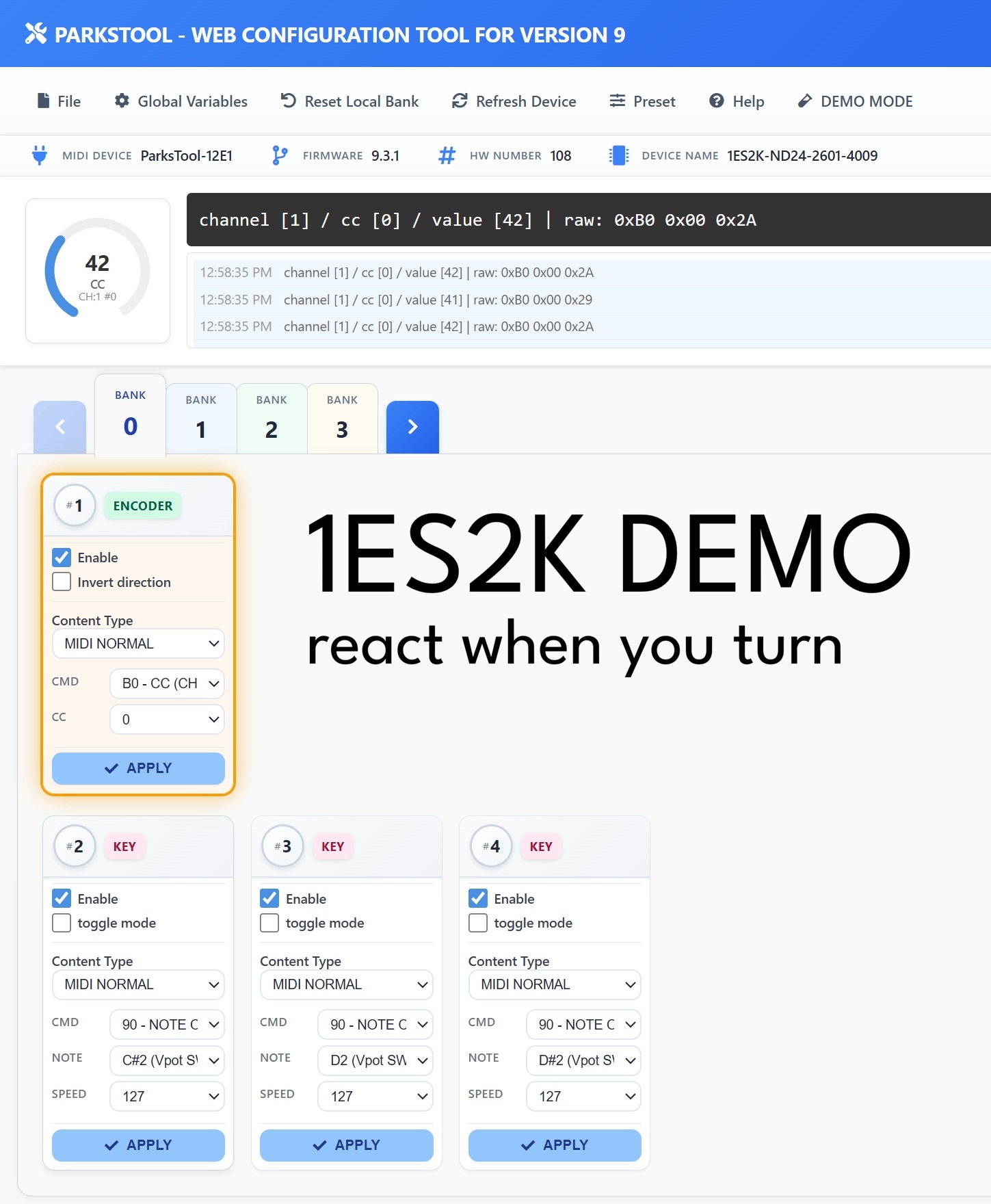
Note
The screenshot above is an example based on the 1ES2K. The number and type of controls displayed (encoders, keys, faders, potentiometers) may vary depending on your product.
The web configuration tool consists of the following main areas:
Top Menu Bar
File — Save/load configuration files
Global Variables — Global settings including number of Banks and Bank Looping
Reset Local Bank — Reset the current Bank settings
Refresh Device — Reconnect the connected device
Preset — Load a pre-saved preset
Help — Help
DEMO MODE — Lets you explore the interface without a connected device. Useful for previewing features before purchase or practising your configuration.
Device Info Bar
Information about the connected device is displayed in a single line:
MIDI DEVICE — The MIDI device name recognised by your computer (e.g.
ParksTool-12E1)FIRMWARE — The current firmware version (e.g.
9.3.1)HW NUMBER — Hardware serial number
DEVICE NAME — Product SKU name (e.g.
1ES2K-ND24-2601-4009)
MIDI Monitor
MIDI messages sent from the device are displayed in real time. The format is as follows:
channel [1] / cc [0] / value [42] | raw: 0xB0 0x00 0x2A
channel— MIDI channel number (1–16)cc— CC number (0–127)value— Current value (0–127)raw— Raw MIDI bytes transmitted (hexadecimal)
The log area records recent messages with timestamps, and the circular gauge on the left visually displays the current value, MIDI type, channel, and CC number.
Bank Tabs
Banks from 0 to N are displayed as tabs. Click a tab or use the arrow buttons to switch Banks. The tab highlighted in blue is the Bank currently being edited.
Control Cards
Each control is displayed as a card. The top of each card shows the control number (#1, #2, …) and a type badge (ENCODER, KEY, FADER, POTENTIOMETER, etc.).
Settings available on each card:
Enable — Whether the control is active
Invert direction — Encoders, potentiometers, and faders only. Reverses the value direction.
Toggle mode — Keys only. Alternates between On and Off with each press.
Content Type — Select the type of MIDI message (MIDI NORMAL, PITCHBEND, etc.)
After making changes, you must press the APPLY button to save them to the device.
Astuce
Orange border: The card of the control currently being physically operated is highlighted with an orange border in real time. When you turn a knob or press a key, the corresponding card is highlighted, making it easy to see which control you are using — especially helpful during configuration.
🔁 Explication supplémentaire liée aux Banks
Vous pouvez changer de Bank en utilisant Encodeurs et Touches.
Par défaut, 2 Banks sont fournis, et vous pouvez modifier le nombre de Banks dans l’onglet Variables globales de l’outil de configuration Web.
Encodeurs de type détent avec crans physiques sont recommandés pour le changement de Bank.
L’activation du bouclage de Bank permet de revenir du dernier Bank au premier Bank. Utile pour les appareils à bouton unique.
Chaque Bank nécessite une configuration avant utilisation.
Les gammes de produits potentiomètre peuvent également changer de bank. Il est recommandé de configurer les autres banks comme fonctionnalité bank. Sinon, après le changement de bank, cet élément ne fonctionnera plus comme changement de bank et deviendra un mode midi général.
🔢 Modifier le USB PID (utilisation simultanée de deux appareils)
Pour connecter simultanément deux appareils ParksTool du même modèle à un seul PC, leurs USB PID (identifiants produit) doivent être différents. Sinon le PC les voit comme le même appareil — l’un peut ne pas être reconnu, ou les entrées peuvent se mélanger.
Procédure :
Connectez uniquement l’appareil à modifier au PC, puis ouvrez le Web Configuration Tool.
Ouvrez Global Variables dans la barre de menu supérieure.
Sous USB PID, choisissez le numéro à utiliser.
Une fois appliqué, l’appareil se reconnecte automatiquement et est reconnu avec le nouveau numéro.
Débranchez le premier appareil, branchez le second et attribuez-lui un numéro différent en suivant la même procédure.
Note
Chaque produit ParksTool propose 15 numéros disponibles. En cas d’utilisation de deux appareils ou plus, il suffit de leur attribuer des numéros distincts.
Cette fonctionnalité n’est disponible qu’à partir du firmware 9.3.5.
🔧 Lorsque le nom du produit s’affiche incorrectement (réglage du numéro de matériel)
Symptôme
Après une mise à jour du firmware, le nom du produit affiché dans les informations de l’appareil peut différer du produit réellement acheté. Par exemple, un produit à deux encodeurs peut être reconnu sous un nom totalement différent (par ex. ``1ES-ND24-2300``). Cela concerne surtout les unités fabriquées au début.
Cause
L’appareil enregistre un « numéro de profil produit » qui indique de quel produit il s’agit. Sur les unités plus anciennes, ce numéro peut être désynchronisé du produit réel. Le matériel lui-même fonctionne bien — une fois le bon profil réglé, le nom et le mappage des boutons/touches sont restaurés conformément au produit.
Comment résoudre le problème
Connectez l’appareil en USB et ouvrez le Web Configuration Tool.
Ouvrez Global Variables dans la barre de menu supérieure.
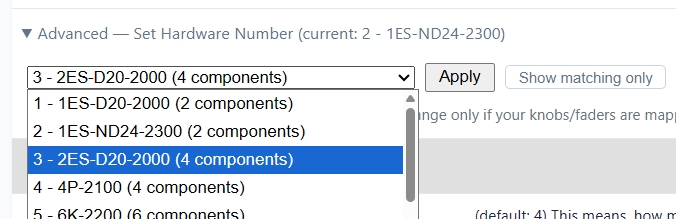
Sous Device information, déployez Advanced — Set Hardware Number. Le numéro et le nom actuellement détectés y sont affichés.
Par défaut, seuls les produits ayant le même nombre de composants que votre unité sont affichés. Si votre produit réel n’est pas dans la liste, cliquez sur le bouton Show all profiles pour afficher la liste complète.
Choisissez le numéro correspondant à votre produit réel, cliquez sur Apply, puis confirmez. Le réglage est enregistré dans l’appareil et conservé même après une coupure d’alimentation.
Enfin, lancez une fois Auto Update dans le ParksTool Uploader. Il installe le firmware correspondant au produit, et le nom ainsi que les mappages reviennent à la normale.
Note
La plupart des utilisateurs n’en ont jamais besoin. Utilisez-le uniquement lorsque le nom de produit affiché ne correspond pas à votre produit réel, ou que les boutons/faders semblent mal mappés. Si vous n’êtes pas sûr du numéro à choisir, veuillez contacter ParksTool.
Mappage et paramètres utilisateur
✨ Fonctions de mappage de base
Vous pouvez mapper librement les touches, boutons, touches média, etc. via l’outil de configuration Web.
Lorsque vous ouvrez la page de paramètres dans un navigateur Web avec le produit connecté, il est automatiquement reconnu.
Per-Component Additional Settings
Each component (PEK) supports the following settings in addition to Content Type.
Invert direction: Reverses the value direction for encoders, potentiometers, and faders. Does not apply to keys.
Toggle mode: Key only. When enabled, each key press alternates between On and Off. (Not shown in BANK FEATURE mode.)
REPEAT: Available in Keyboard / Consumer Control / Mouse modes. Sets how many times the input is repeatedly transmitted when a key is pressed once. For example, setting it to 5 will send the key input 5 times with a single press. Configurable from 1 to 60.